Condition Monitoring Portal - Features

Condition Monitoring Portal’s home page serves as a command center for the application, giving CMAs, PSSRs, and administrators an overview of the cases and alerts in your system. Many of the data points on this screen are interactable, giving you both high-level visibility and the ability to click through for more information.

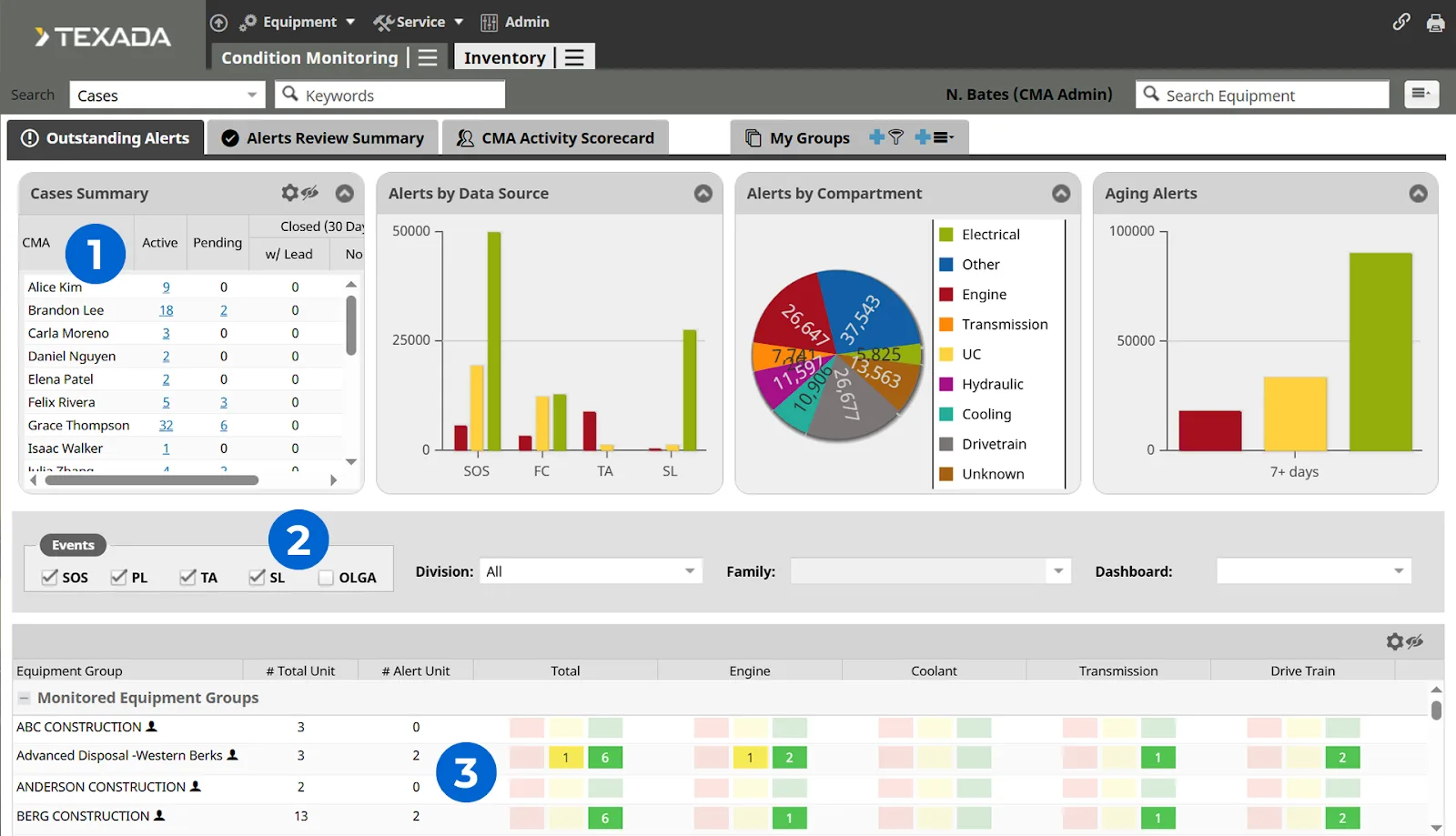
The home page’s main tab is the Outstanding Alerts tab, pictured here. The elements of this tab include:

  1. Cases Summary: This table summarizes active, pending, and closed cases by Texada user. 
  2. Event Filtering Options: Use these checkboxes to filter Events by type (Scheduled Oil Sampling, Product Link, Technical Analysis, Service Letters, and Opportunity Lead Generation Analyzer). Changing these filters will refresh both the graphs at the top of the screen and the alerts table at the bottom.
  3. Alerts Table: This table summarizes alerts matching the current filters, organized by customer. Click on any of the numbers in the colored columns to see a detailed list of alerts.

Additional dashboard tabs include the Alerts Review Summary (which provides a more detailed breakdown of alerts) and the CMA Activity Scorecard, which we’ll cover next.

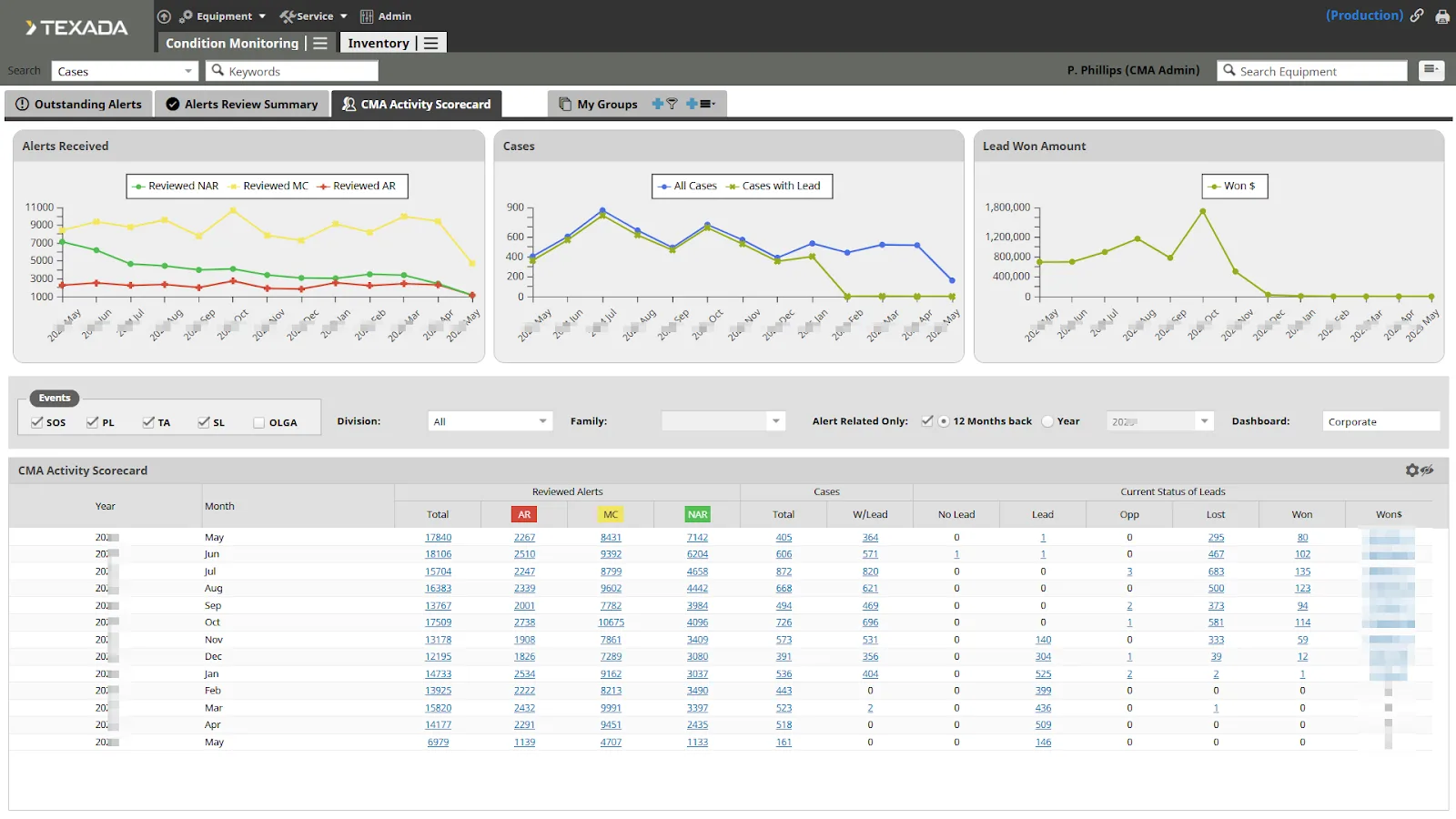
The CMA Activity Scorecard page allows managers to see how many alerts are being reviewed, how many are converted into cases with Leads and the rate at which they are being converted into Leads.

The table at the bottom of this screen breaks down the alerts, cases, and Leads in your system by year and month. The “Current Status of Leads” section to the right shows you how many Leads were created, lost, and won, and the amount of revenue generated by these Leads.

Use the filters in the middle to select Division, Family and even select/de-select the Scheduled Oil Samples, Product Link (alerts), Technical Analysis (CAT Inspections) and Service Letters.

Remember that you can click on any of the hyperlinked numbers on this page to see a detailed list of results!

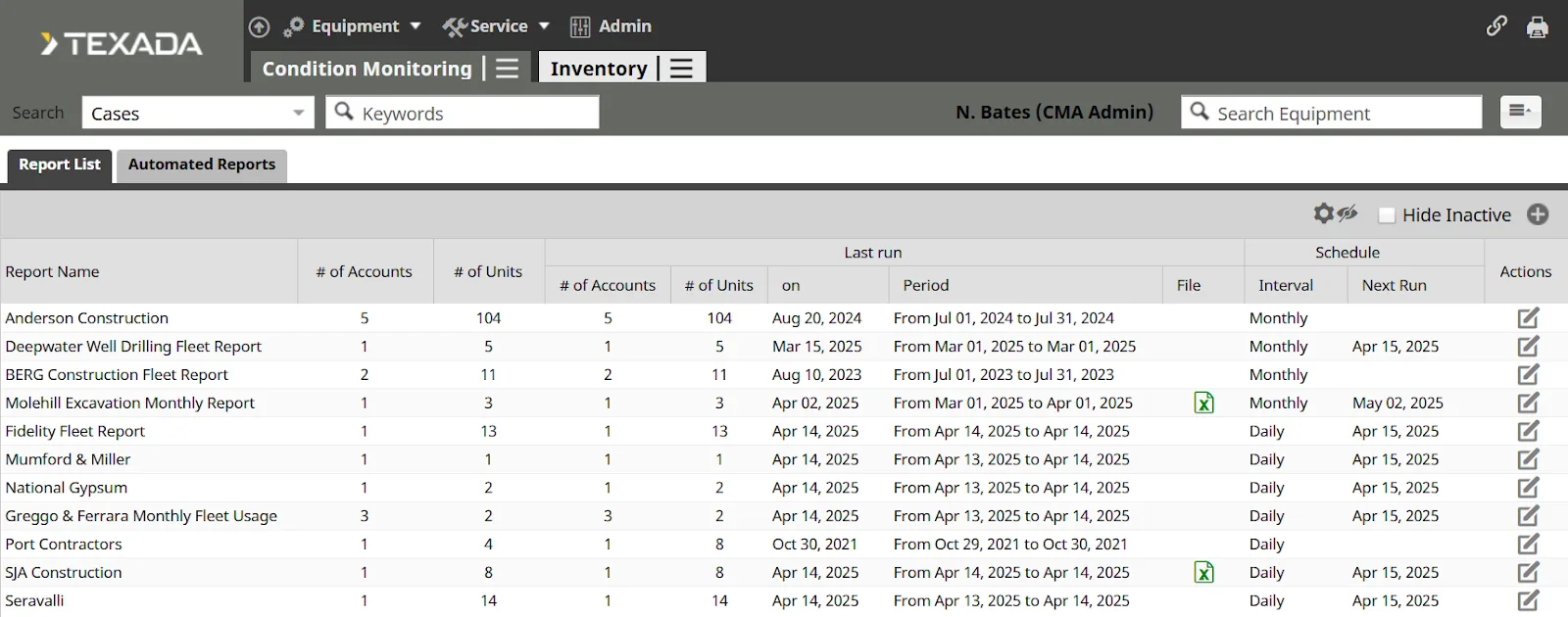
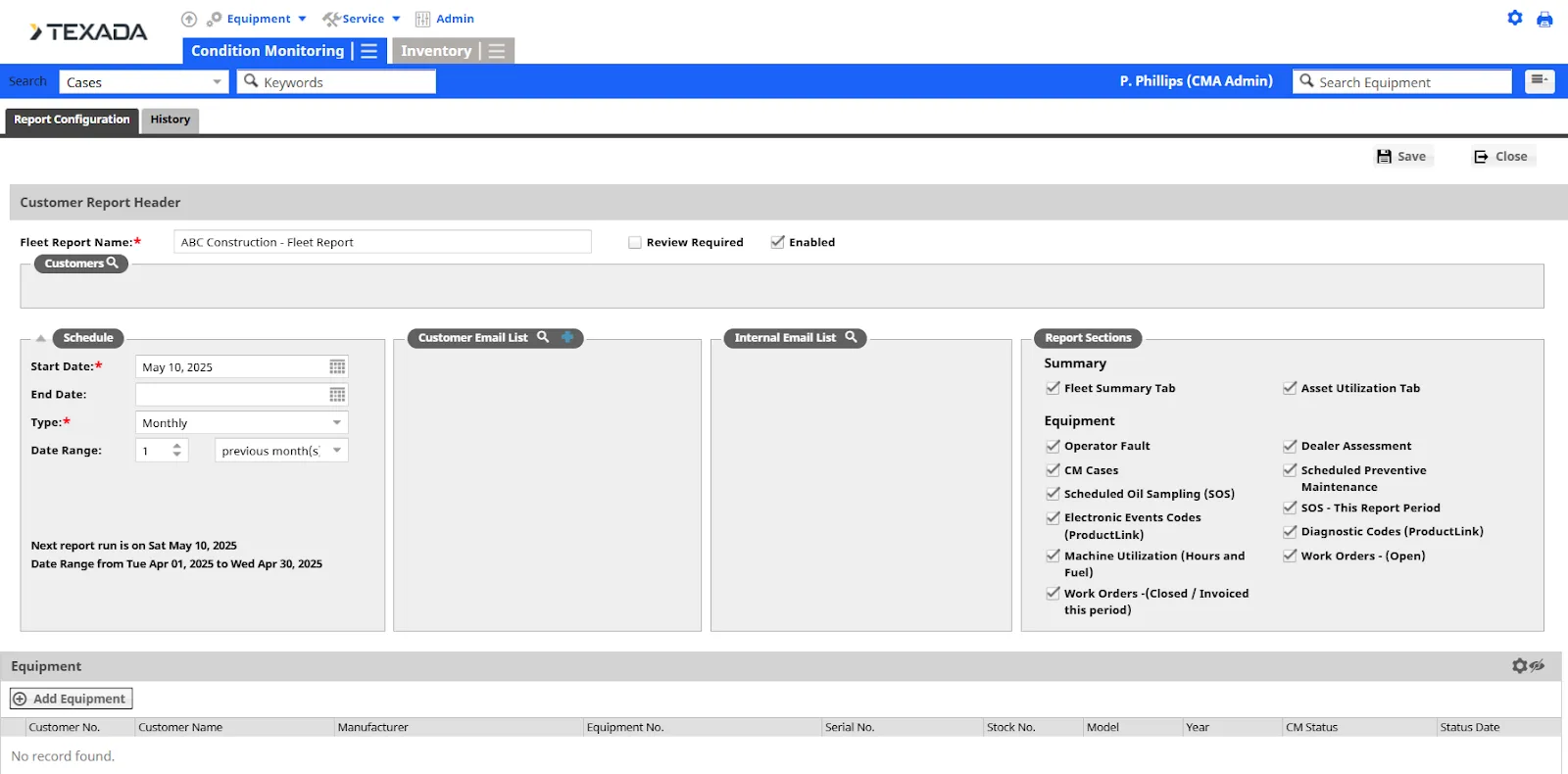
This powerful feature produces downloadable fleet reports for your customers, granting you invaluable insights on asset utilization, operator-induced faults, per-machine service history, and more. 

When creating a fleet report, you’ll be able to choose which customers and equipment to run the report on, establish the report’s update frequency, and select from over 20 optional sections to include (from Operator Faults, to CM Cases, to Dealer Assessments, and more). You can even establish a mailing list to automatically email your report to the customer at predetermined intervals! 

Once you’ve created a report, click the Excel icon   under the ‘File’ column to download it as a Microsoft Excel (.xlsx) file. Sharing these reports can be an excellent way to deepen the partnership between you and your customer.
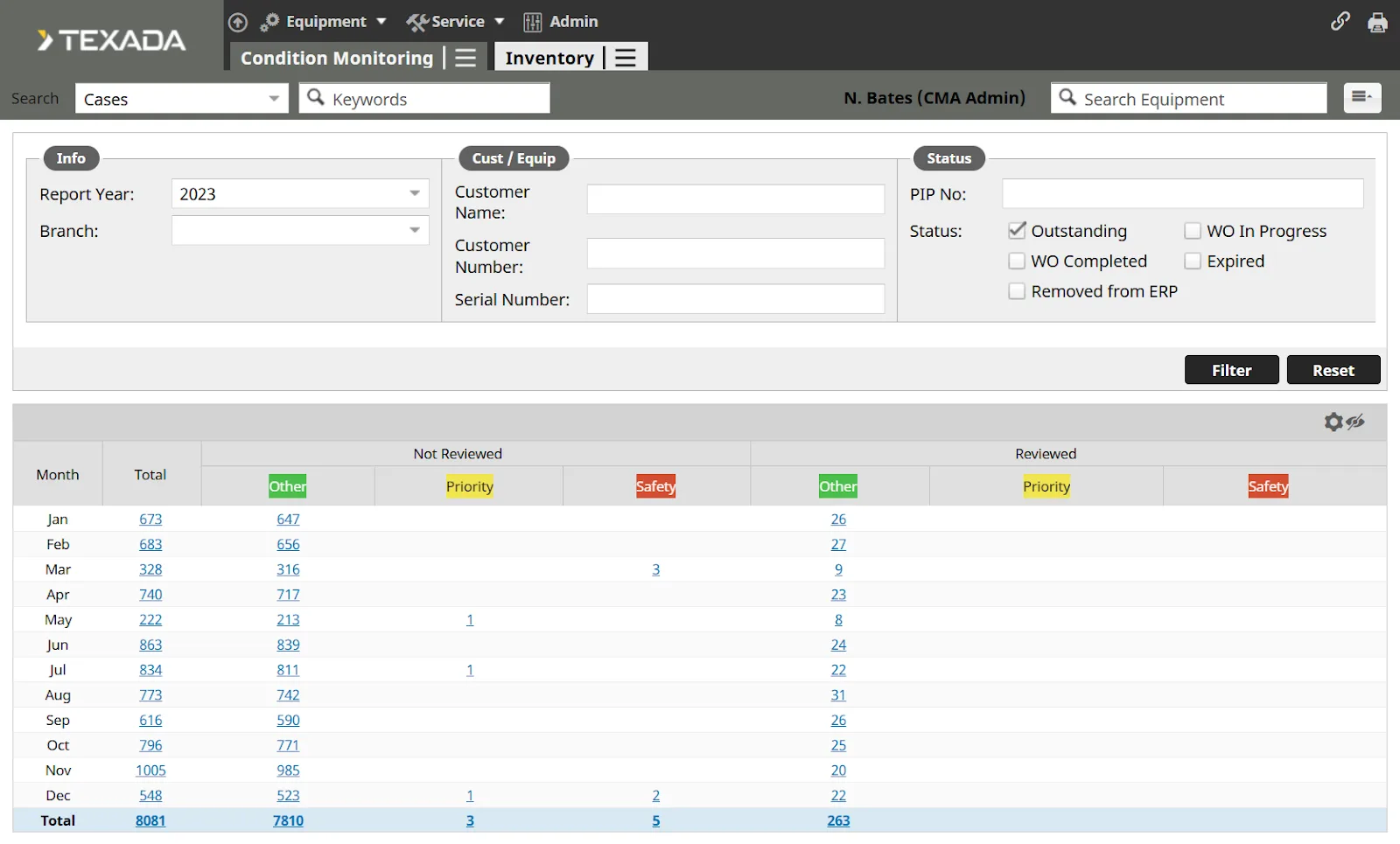
The Service Letters Summary page captures Service Letters incoming from equipment manufacturers. Letters are organized into three categories: Safety PIPs (red), Priority (yellow), and Other PSPs (green).

Since the cost of performing maintenance prompted by Service Letters is invoiced to the manufacturer instead of the customer, acting on these letters is an effective way to add value for your customers without charging them for additional maintenance.

It is strongly recommended for CMAs to check this page regularly to identify and schedule cost-effective maintenance work! Incorporate Service Letter work with regular maintenance to capture additional value and improve customer satisfaction.

X