Equipment Monitoring Toolkit - Features

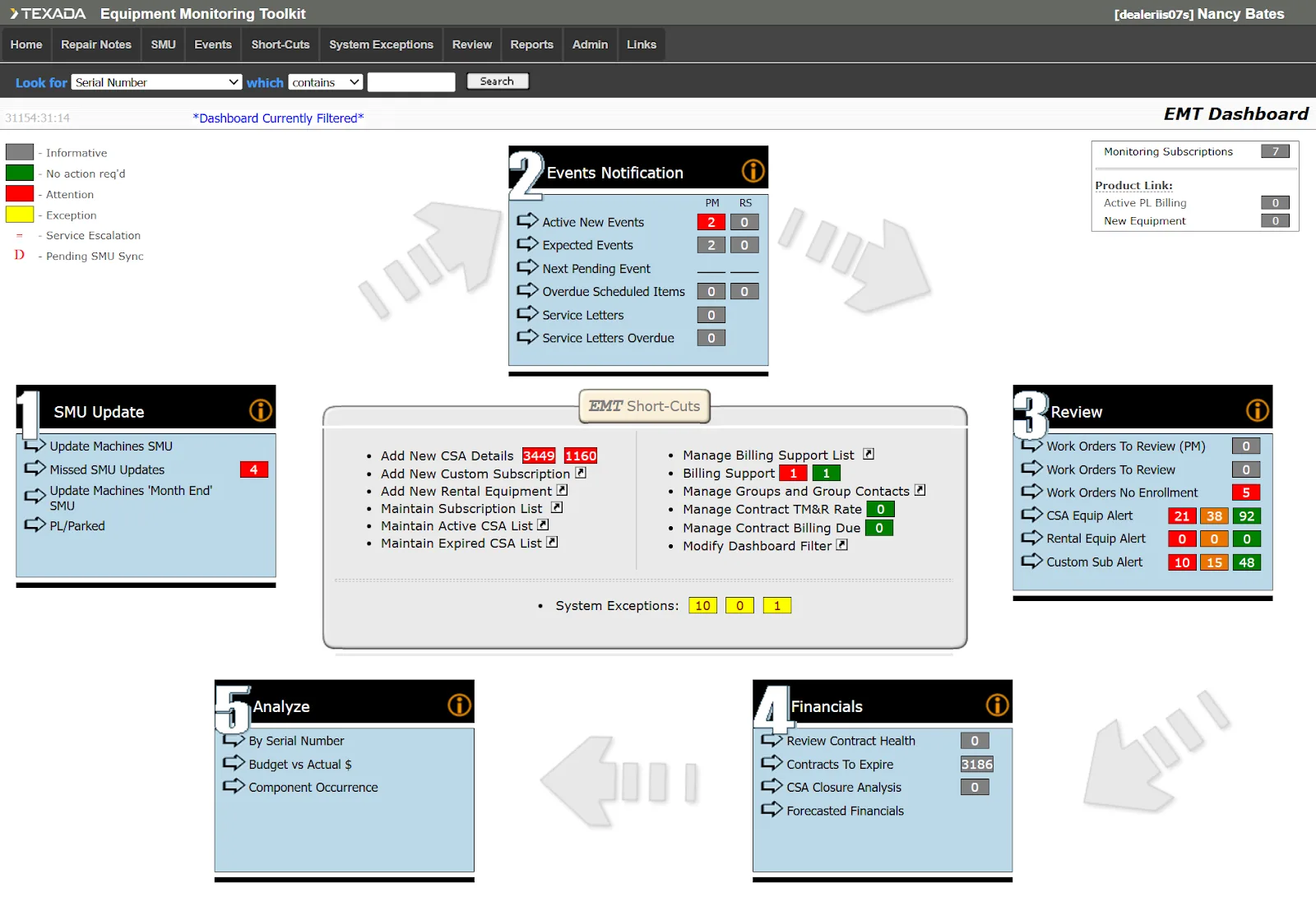
The EMT dashboard is your portal to EMT’s key functionality, containing dozens of links arranged based on a recommended workflow:

  1. SMU Update: Update machine SMUs and manage missed updates.
  2. Events Notification: Manage Events and Service Letters.
  3. Review: Review Work Orders and alerts.
  4. Financials: Review Contracts, CSA closures, and forecasted financials.
  5. Analyze: Jump to three key reports: Work Order Review, Work Order Component Cost, and Work Order Component Occurrence.

The “EMT Shortcuts” panel in the center of this screen provides quick access to essential tools for managing equipment subscriptions, Contracts, and billing data

The “System Exceptions” section links to the Machine Exceptions, SMU Exceptions/Warnings, and Ownership Changes currently affecting your system. These are the same three pages you’ll find under the “System Exceptions” menu in the top bar; we’ll cover each of these pages shortly.

The Active New Events page is the primary page of interest for CVA coordinators and administrators. The key piece of functionality here is the “Schedule” button, which pushes Events into ServiceLink for completion!

  • The “Exceptions” column will contain a yellow caution sign   if any Exceptions exist for the machine in question. Hover your mouse over this symbol for more information.
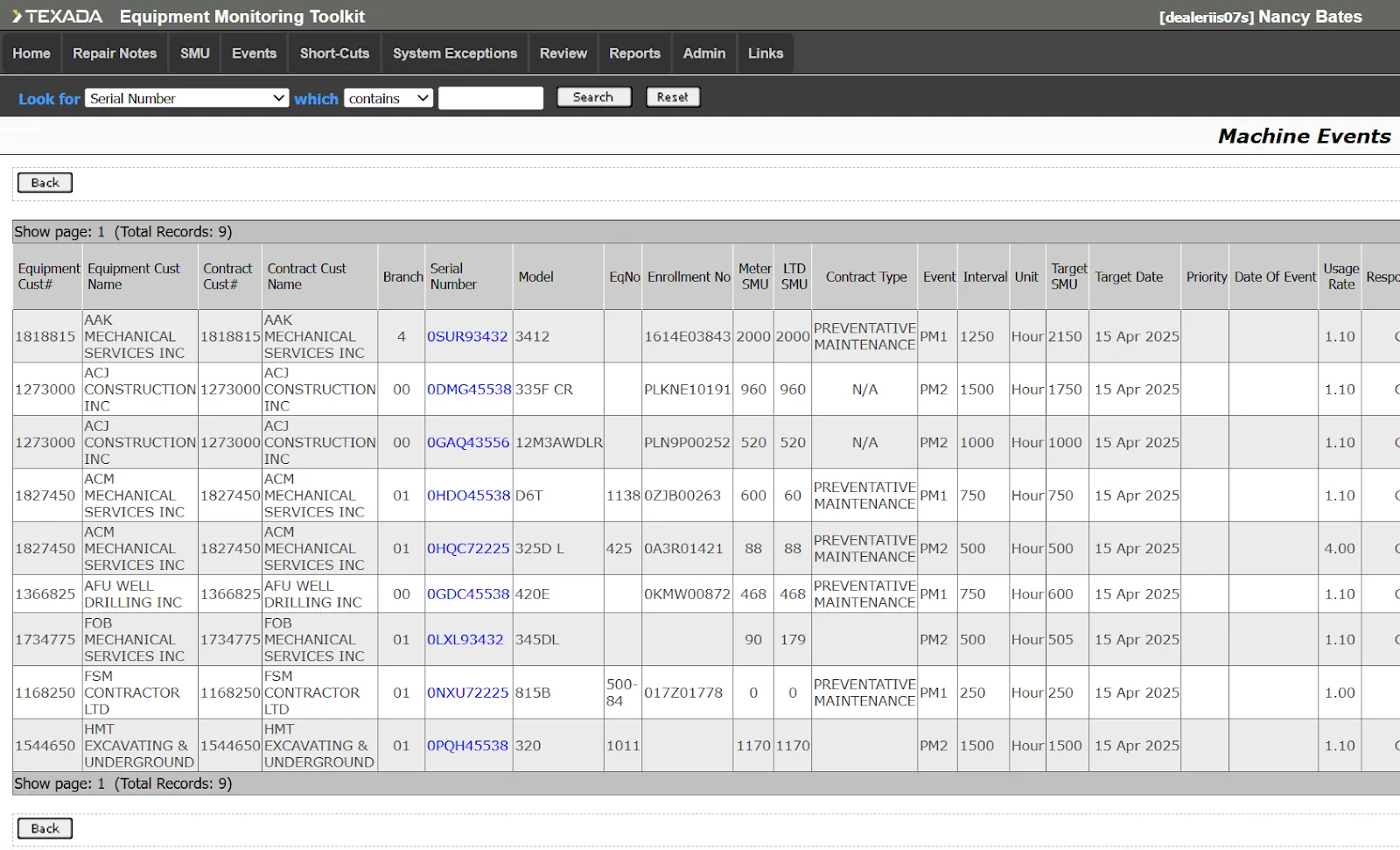
  • Click the “Schedule” button under the “Action” column to schedule a single Event. You can also schedule multiple Events by selecting them under the “Include” column, then clicking the “Schedule” button in the top-right corner of the screen.
  • Click on a machine’s serial number to view its details.

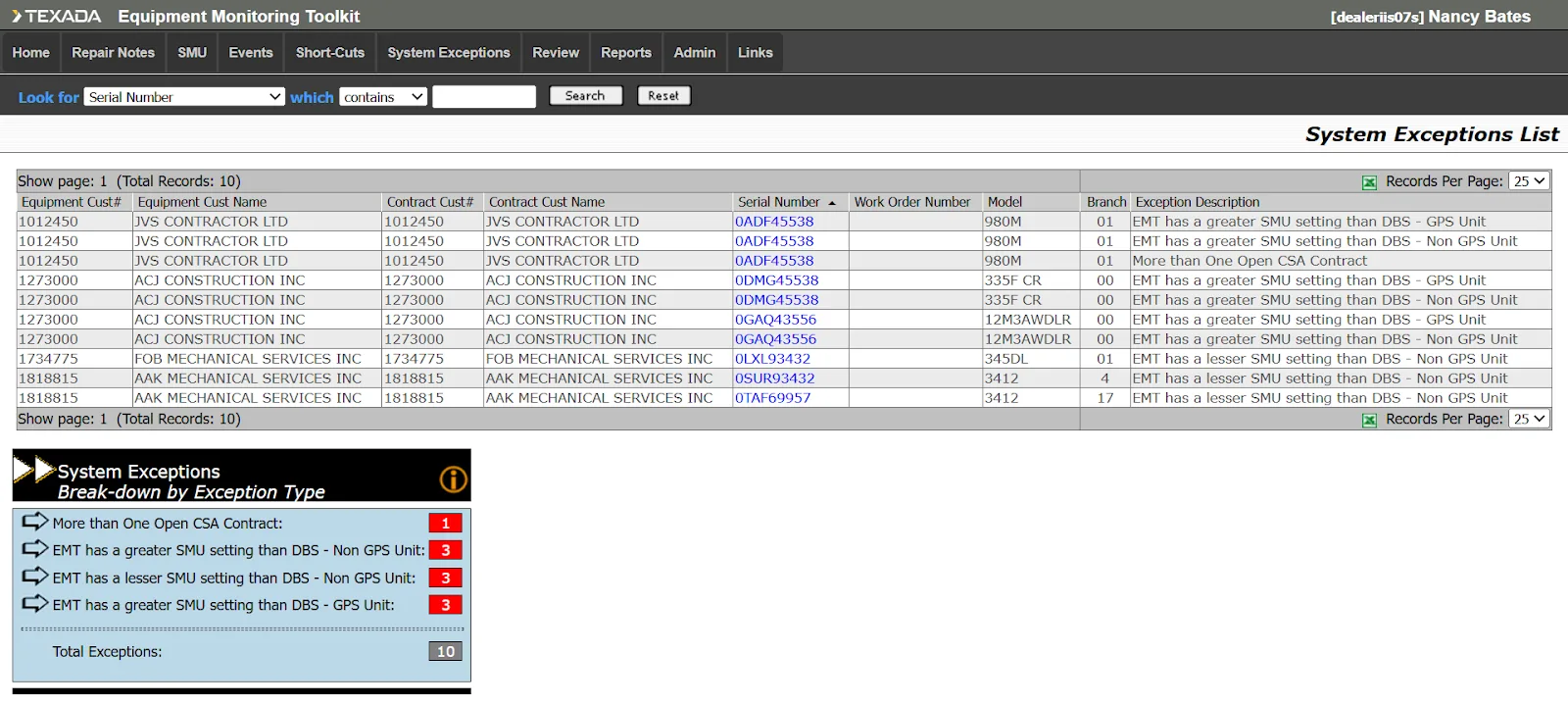
This page lists the Machine Exceptions – Exceptions that prevent a piece of equipment from being monitored successfully – currently affecting the machines in your system. Use this page to address Exceptions early and keep the data flowing!

  • The “Exception Description” column briefly summarizes each Exception
  • Click on a machine’s serial number to view its details.
  • The “Break-down by Exception Type” panel at the bottom of the screen aggregates Exception data. Click on any of the Exception types in this panel to filter the list by that type!
  • Click the Excel icon to export the list of Exceptions. This will only export Exceptions matching the current filters.
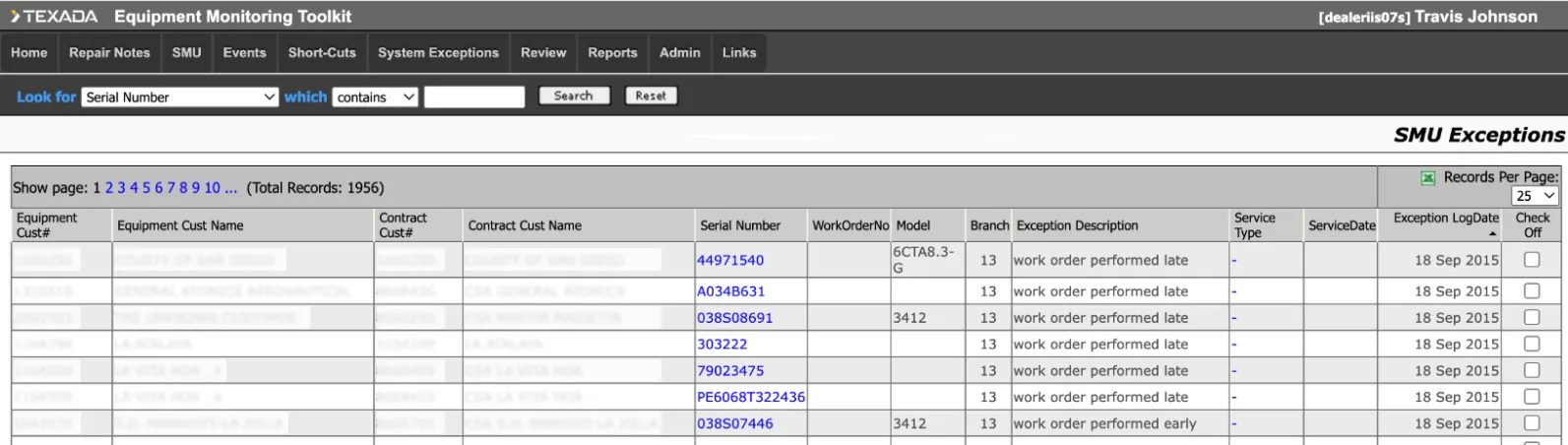
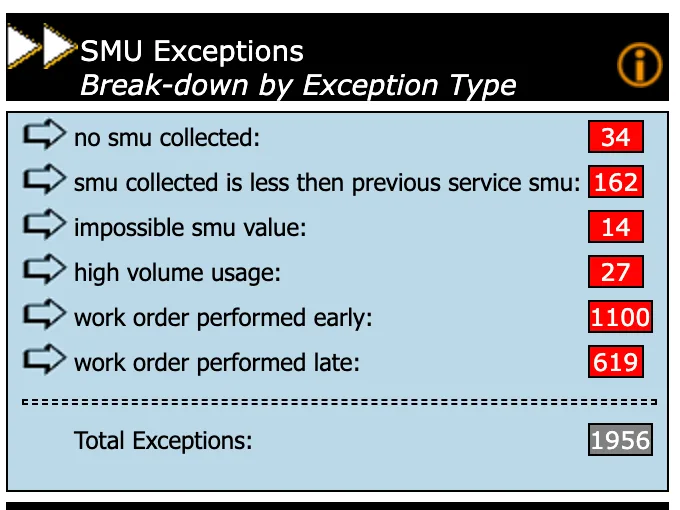
This page lists the equipment that have an issue with the SMU at the time of the work order closing. This is determined from guidelines set by the dealer/manufacturer. 

  • The “Exception Description” column briefly summarizes each Exception
  • The “Break-down by Exception Type” panel at the bottom of the screen aggregates Exception data. Click on any of the Exception types in this panel to filter the list by that type!

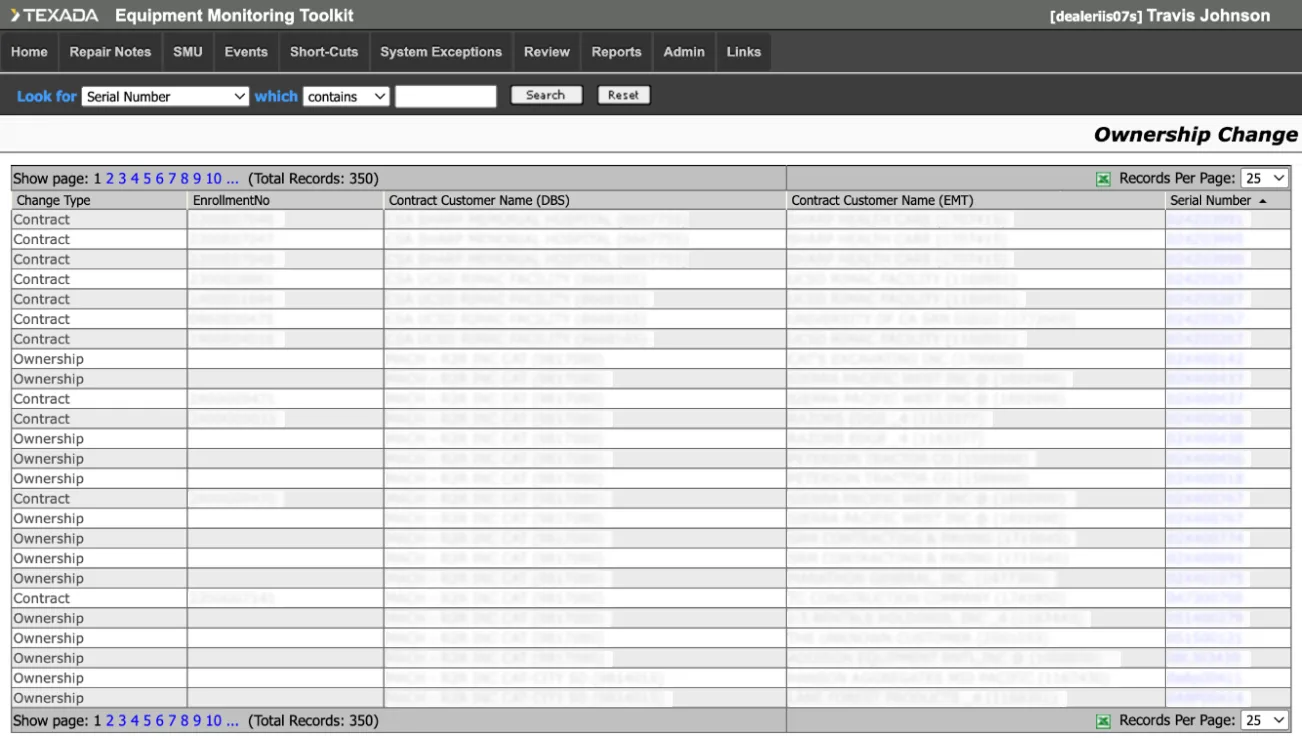
The last of the System Exceptions pages tracks Ownership Change Exceptions. These Exceptions occur when a machine’s stated owner in EMT does not match that in your ERP software.

Each Exception shows the Contract Customer Name in your ERP and the Contract Customer Name in EMT, so you can compare the two. Click on a machine’s serial number to see more details.

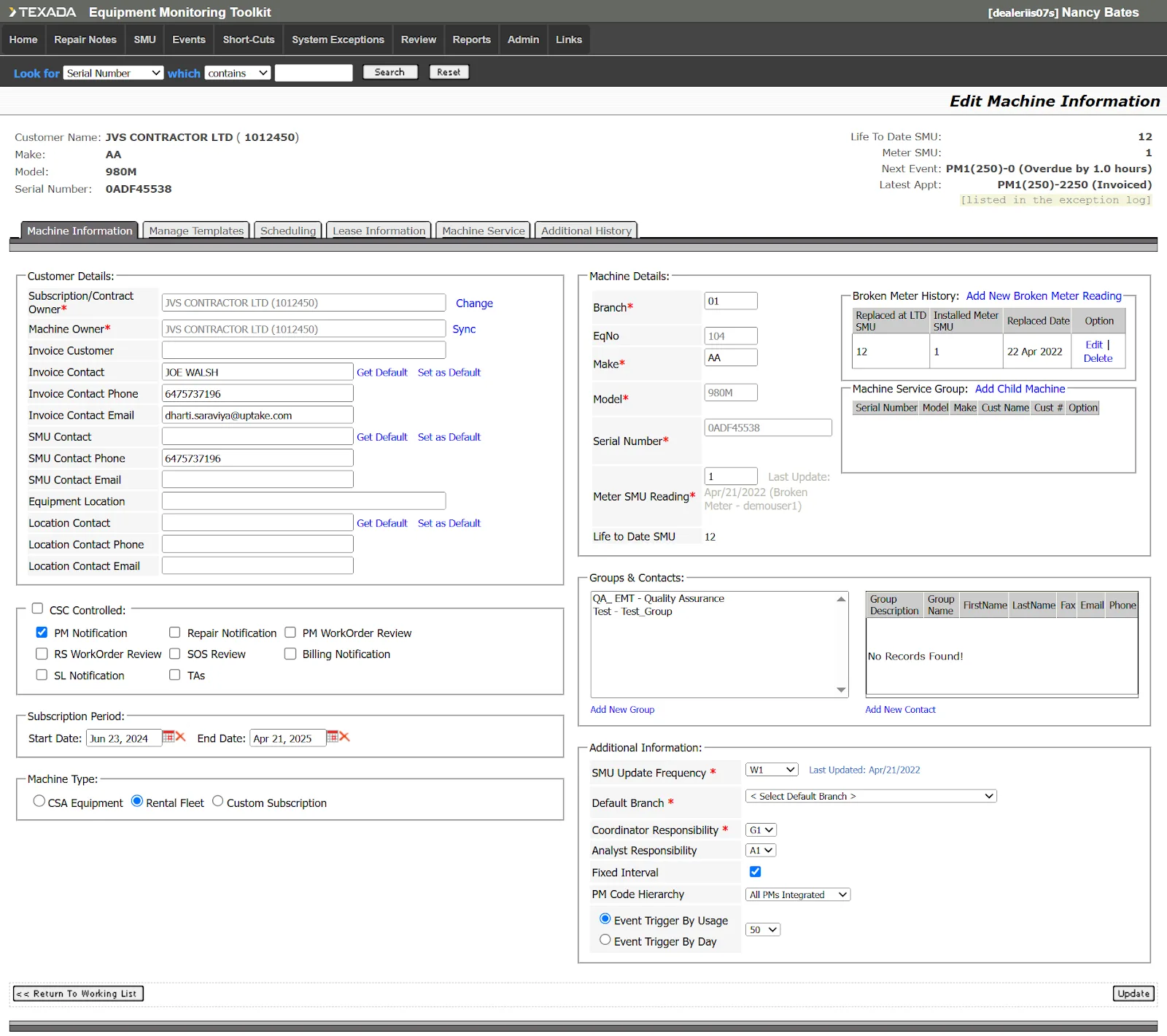
Whenever you click on a machine’s serial number in EMT, you’ll be brought to the Machine Information screen. This screen, which tells you everything about a particular piece of equipment, is organized into several tabs, including:

  • Scheduling: Allows you to select a Preventive Maintenance Schedule Plan for the machine.
  • Contract Information: Contains information on the machine’s current PM Contract and allows you to make minor adjustments.
  • Additional History: The machine’s full service history is available in the Work Order section, including PM Events, repairs, and Service Letters.
  • Machine Service: Preventive Maintenance Events are displayed here along with their current status. New PM Events can also be manually scheduled here.
    • Additional services such as Secondary Services, Kidney Loop, Repair Service and Service Letters can be added in conjunction with the scheduled PM Event.
X