Service Agreement Quoting - Features

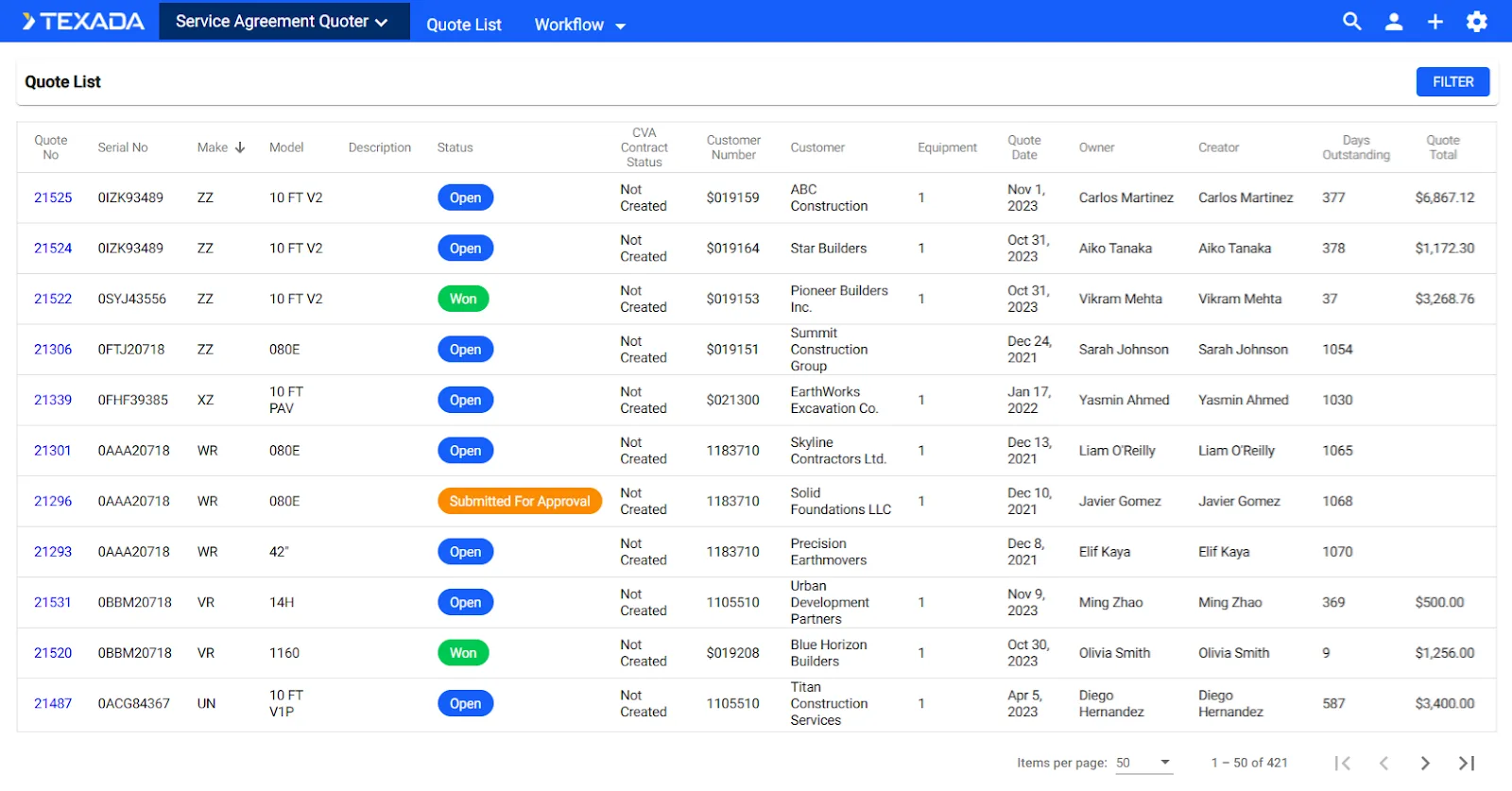
SAQ’s home page lists all of the Quotes that currently exist in your system. This page is packed with valuable information including Quote Status, Contract Status, Equipment count, Owner, Creator, Totals and more!

Click the “Filter” button in the top-right corner of the screen to access powerful filtering options. If you find yourself consistently using the same filter, you can save it by clicking the “Set as Default” button.

Click on the column headings to sort the list of Quotes by that column. Once you’ve found the Quote you’re looking for, click on its Quote No to open it!

SAQ’s settings menu can be accessed by clicking the gear icon in the top-right corner of the screen.

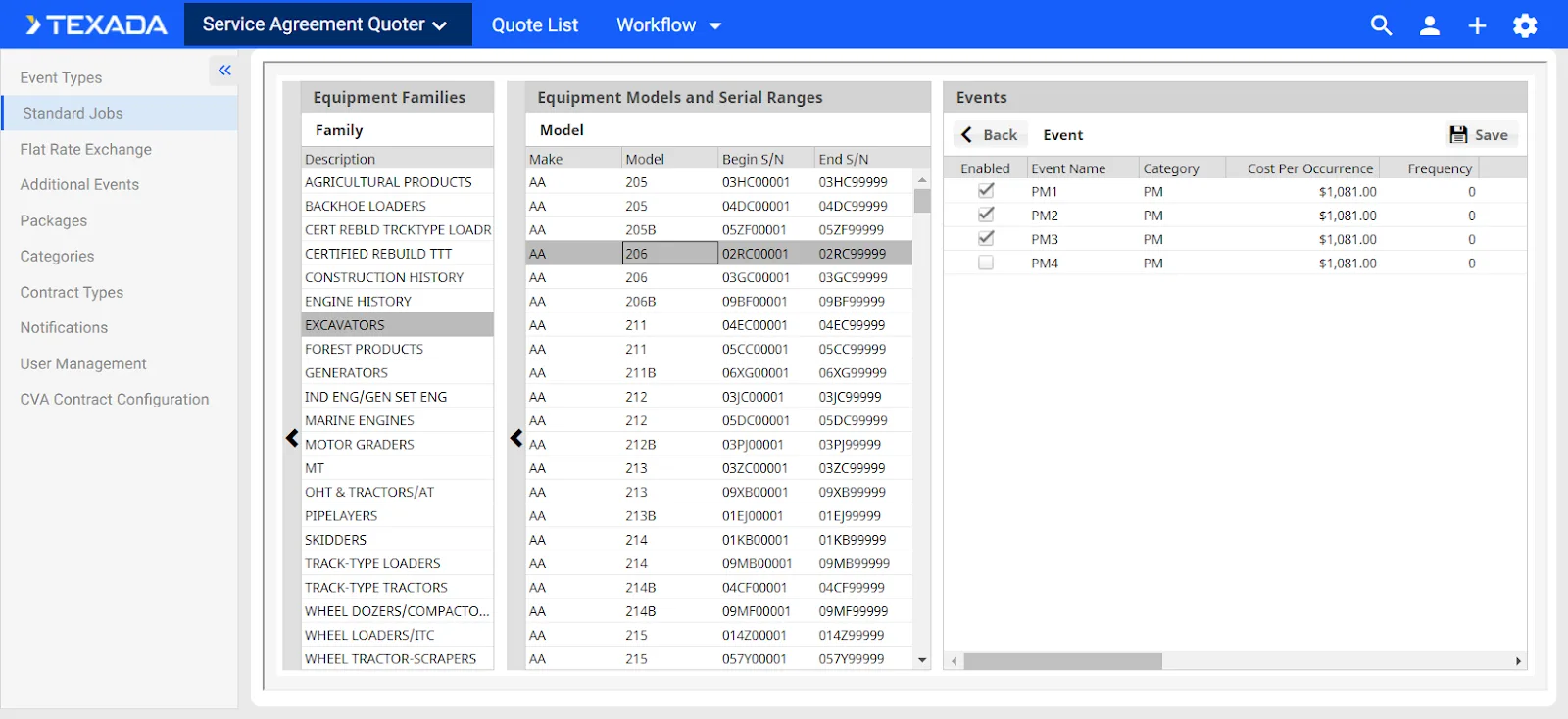
When your organization first starts using SAQ, your CVA administrators will want to spend some time configuring Events, Packages, Standard Jobs, Flat Rate Exchanges, and defaults for CVA Contracts

Completing these configurations early will have a profound impact on SAQ’s behavior, making it much easier for your users to create Quotes and providing significant returns down the road.

Visit Texada’s Knowledge Base for a detailed breakdown of all the options available from this menu. 

Texada is also happy to work with your organization to ensure you are set up for success. SAQ is an incredibly powerful tool when properly configured, and we are invested in helping you unlock its full potential. Reach out to your Texada account representative to learn more!
SAQ’s primary function is to create Quotes for PM Contracts. Quotes can be as simple or as complex as you need them to be; they can be for a single machine or an entire fleet. The elements of a Quote include:

  • Revisions: If your customer wants to select from multiple options, or if their requirements change throughout the quoting process, you can use revisions to easily create alternate versions of the same Quote. 
  • Documents: Freely attach external documents to your Quotes, or generate CVA Contract Quote PDFs to share with customers.
  • Equipment: A single Quote can incorporate multiple pieces of equipment. Easily search and add existing equipment from your system, or add custom equipment directly from SAQ.
  • Packages: The venue that encapsulates PM Events (via standard jobs) and the number of those PM Events. Packages act as the Service Interval and Contract Term in hours. No more looking up SMCS codes – just select the Package of your choice!
  • Events: Just as a single Quote can include multiple pieces of equipment, a single Package can include multiple Events.

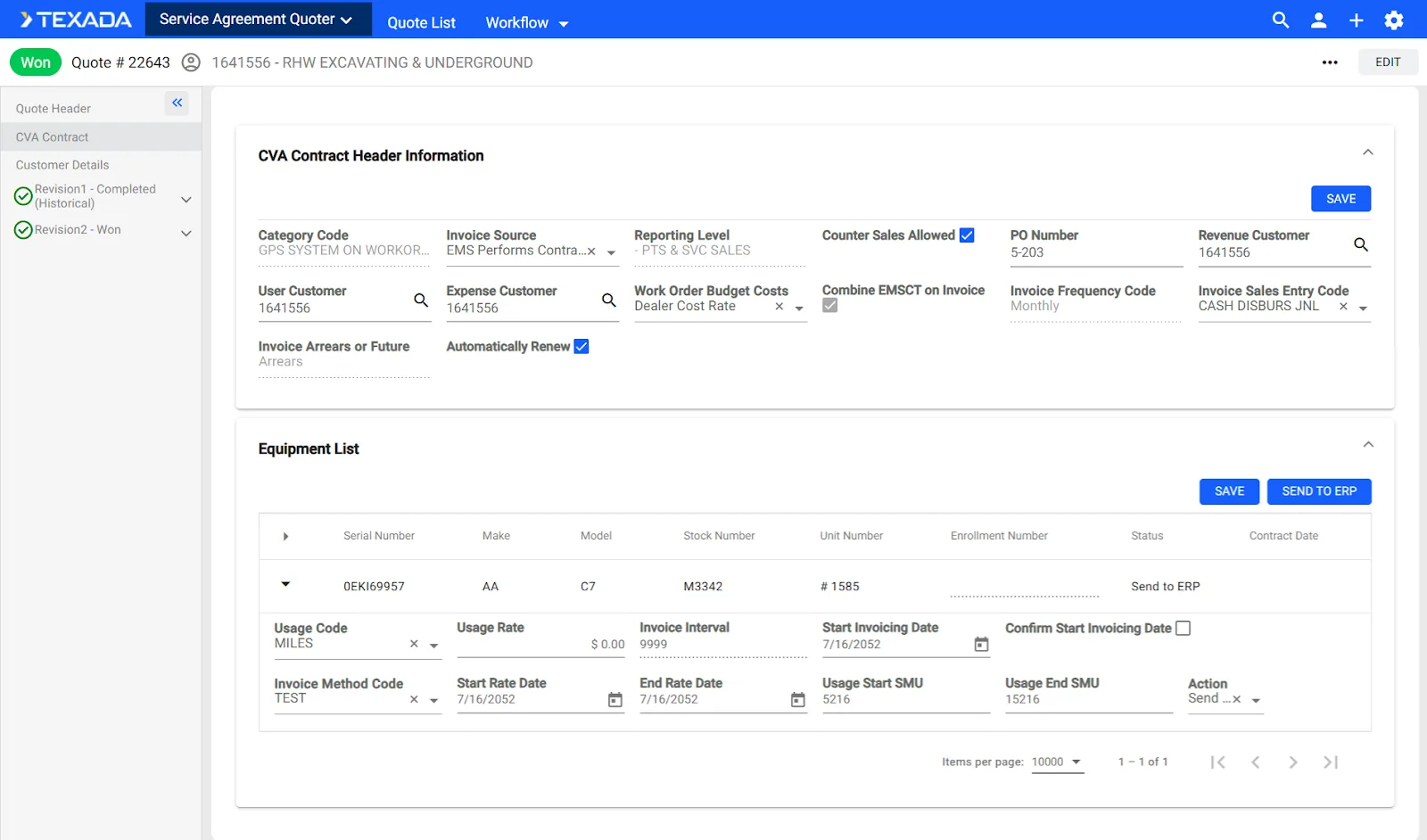
Once a Quote has been won, it’s time to create the CVA Contracts for that Quote. All you need to do is click the “Create Contract” button in the top-right corner of the screen. This will automatically generate a CVA Contract for the units included in the Quote!

Once the Contract has been generated, click the “Send to ERP” button to push the CVA Contract and unit information to your ERP and return an Enrollment Number for each unit!

For Quotes containing multiple machines, the “Create Contract” and “Send to ERP” buttons can save your CVA admins an incredible amount of time by bulk-generating Enrollment Numbers!

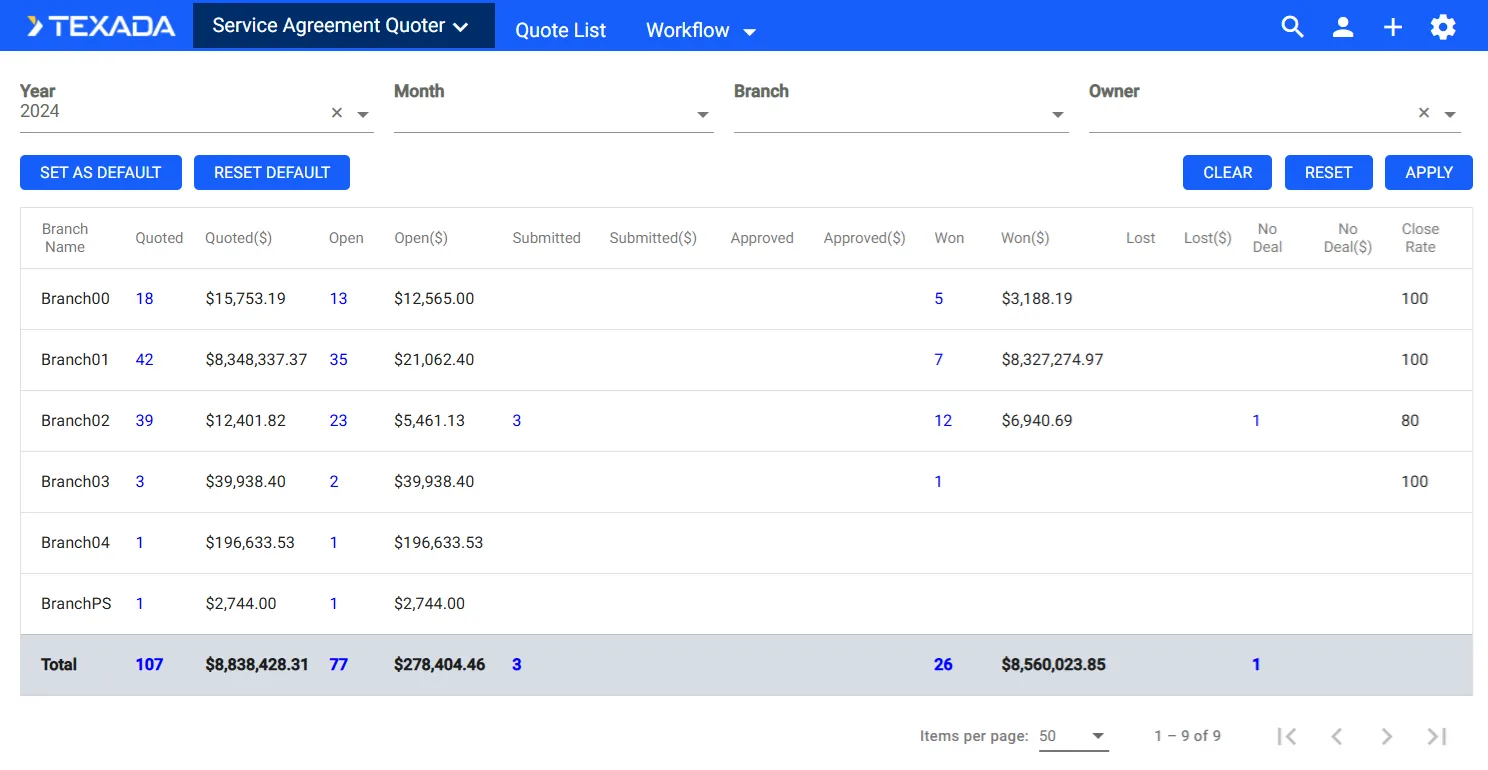
SAQ’s Workflow pages offer you two different ways to review your sales funnel: by branch and by owner

Whichever option you select, you’ll be able to see the quantity and total value of the Quotes in your system, broken out by stage (Quoted, Open, Submitted, Approved, Won, Lost, No Deal). You’ll also be able to see a calculated close rate for each branch and owner. Click any of the hyperlinked numbers to see a list of matching Quotes.

Like the Quote List, the Workflow pages offer powerful filtering options, including the ability to set your preferred filters as the default.

X