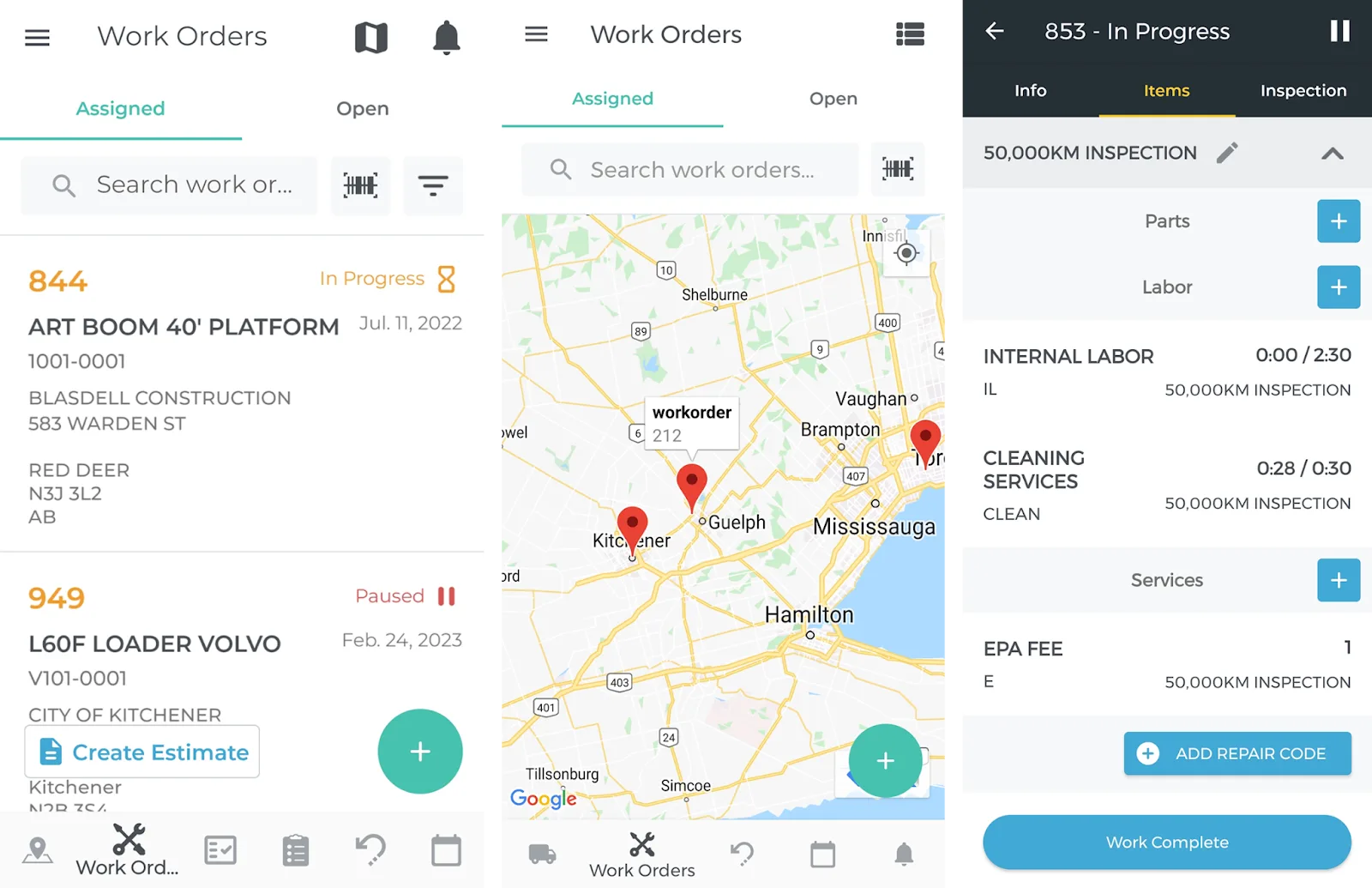
Service & Rental Mobile is the mobile companion application to Service, Rental, and Financials (Classic and Next). Available for both iOS and Android, Service & Rental Mobile provides Drivers, Mechanics, and other field staff with invaluable tools for completing their daily tasks.
With Service & Rental Mobile, you can get driving directions, complete Inspections, perform In-Yard Returns, and capture customer signatures – all from your smart device!
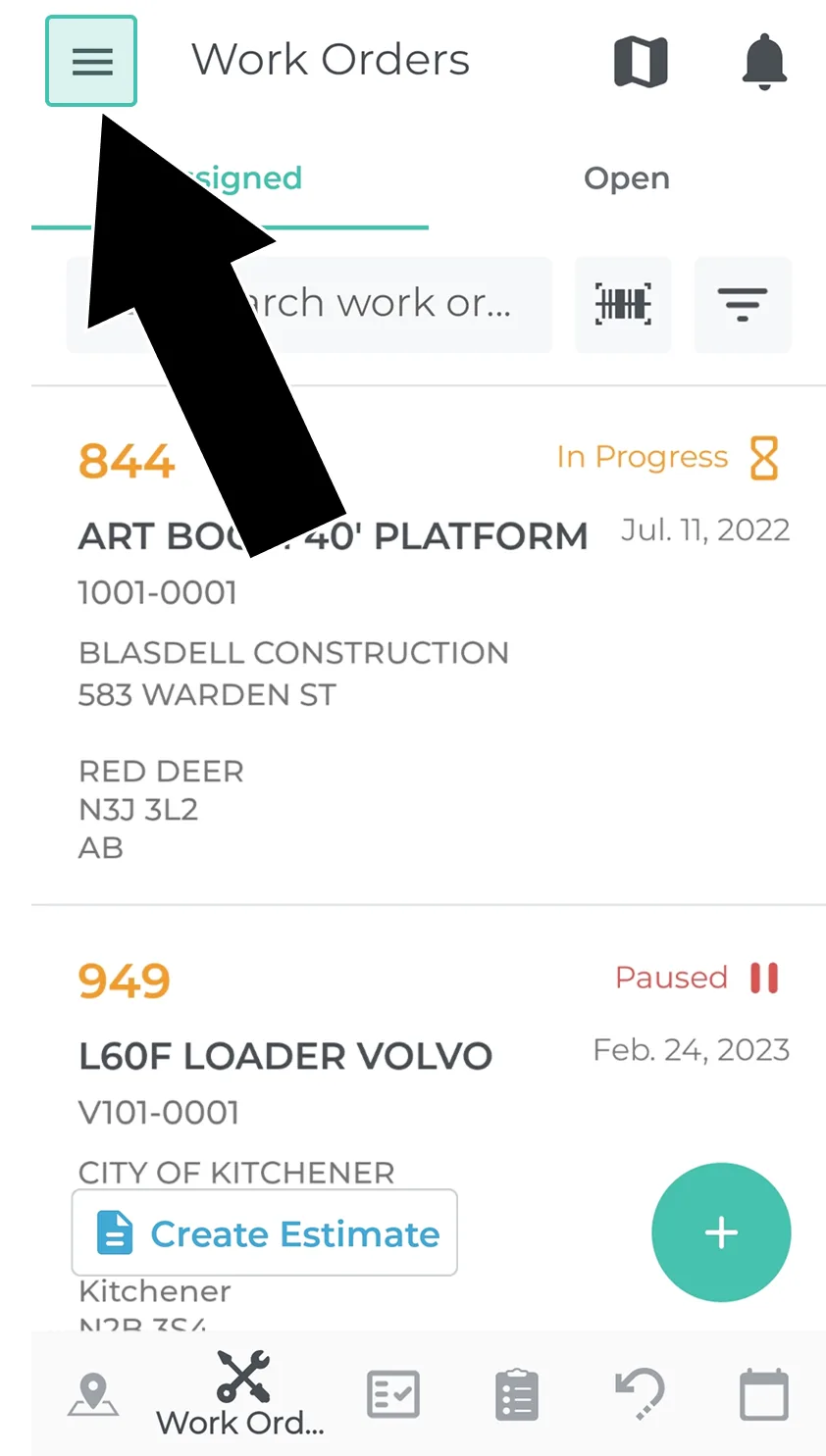
There are two main navigation menus in Service & Rental (Mobile): the main menu, which consists of six icons at the bottom of the screen, and the user menu, accessible by tapping the hamburger icon in the top-left corner.
The main menu provides access to all of the application’s major functionality: Tickets, Work Orders, In-Yard Returns, and more.
This tool is for Drivers responsible for completing Pickup and Delivery Tickets. Browse assigned Tickets in list or map view, get driving directions, load and unload assets, and capture customer signatures
This tool gives Mechanics all the functionality they need to complete Work Orders. Browse and complete assigned Work Orders, take photos and fill out Inspection forms, request parts, and have the customer sign off on the completed Work Order.
Allows warehouse workers to complete the asset staging process, deciding which assets to send out on group-level reservations. By making reservations at the group level then performing asset staging later, you can ensure that the most suitable assets are sent out for each rental contract.
This Asset inquiry tool allows you to review the details of the Assets in your inventory, including their Inspection and Work Order history. You can also perform standalone Inspections from this utility.
This tool allows warehouse workers to process returns for Assets returned directly to the yard. Add photos, comments, and meter information, then have the customer sign off on the return before sending it to Service, Rental, and Financials (Next) to be processed.
This tool provides the current user with an all-in-one schedule of their upcoming tasks. Similar to Service, Rental, and Financials (Next)’s Dashboard Calendar, this snapshot view is invaluable for staying on top of daily work.

There are two main navigation menus in Service & Rental (Mobile): the main menu, which consists of six icons at the bottom of the screen, and the user menu, accessible by tapping the hamburger icon in the top-left corner.
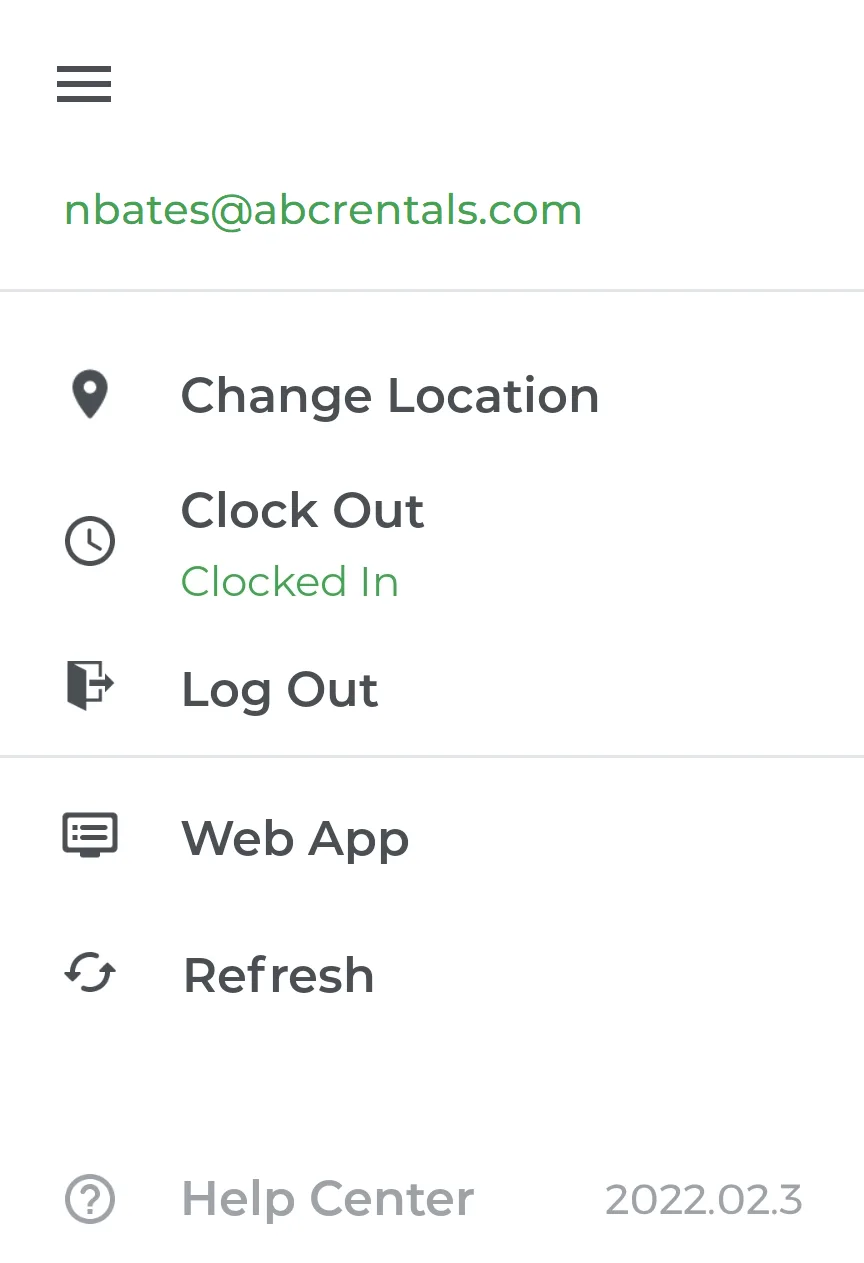
The user menu provides access to additional functions such as changing location and clocking in and out. You can also launch Service, Rental, and Financials (Next) on your smart device from this menu!
Update your current Division and Location.
Clock in or out of the application. Time logged in Service & Rental Mobile can be reviewed by counter operators in Service, Rental, and Financials (Next). For Mechanics, starting work on a Work Order will also automatically clock the user in.
Log out of the application.
Tap this button to open Service, Rental, and Financials (Next) directly from Service & Rental Mobile! This tool gives you access to the full functionality of Service, Rental, and Financials (Next) on your mobile device, and is ideal for workers with hybrid roles.
Refresh the application, pulling the most recent data from the Service, Rental, and Financials database. Service & Rental Mobile refreshes regularly while online; forcing a refresh is generally used for troubleshooting purposes or to update the application after being offline.